Squarespace guides
Fix Squarespace search
Last updated: August 2025
This guide shows how to make search easier to find and use on a Squarespace site. Most steps work with native Squarespace search and with a search plugin such as Monocle.
Some steps require custom code. Each section explains where to add it.
Move the Squarespace 7.1 search bar to the header
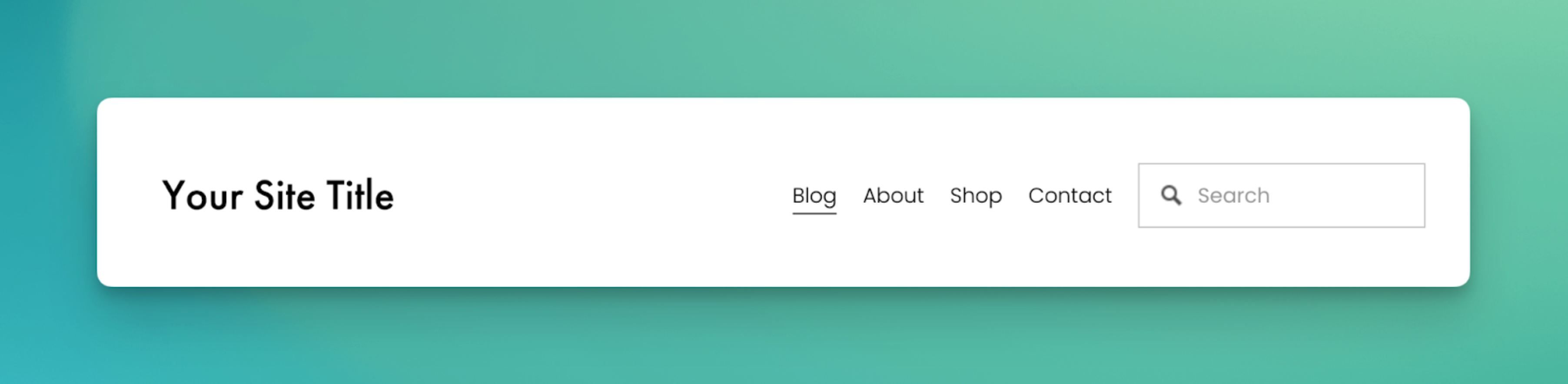
Squarespace 7.1 does not provide a setting that adds a search bar to the header. The method below moves a Search Block from the footer to the header.
Several methods can do this. Start with the basic method below. Use the linked advanced method when you need more control over the design.
Basic method
- Add a Search Block to the footer.
- Open Pages → Custom Code → Code Injection. Paste the code below into Footer. Code Injection must be available on your Squarespace plan.
- Select Save.
Paste this code:
<!-- Beginning of search bar move section /-->

<script src="https://ajax.googleapis.com/ajax/libs/jquery/3.7.0/jquery.min.js"></script>
<script>
  $(document).ready(function () {
    $('footer.sections .search-block').appendTo('div.header-nav')
  })
</script>

<style>
  div.header-nav {
    display: flex;
    flex-wrap: nowrap;
    align-items: center;
    justify-content: right;
    gap: 20px;
  }
</style>

<!-- End of search bar move section /-->
The above code snippet has been adapted from a post in the Squarespace Forum by Square42 Design.
To change the placement, edit the CSS in the <style> block. For help with CSS, use the Squarespace Forum.
Advanced method
For a detailed explanation and more styling options, read Adding a search bar to your header in Squarespace 7.1 by Will Myers.
Add a search icon to the mobile navigation
The header search bar may not fit on small screens. You can add a search icon to the mobile navigation instead.
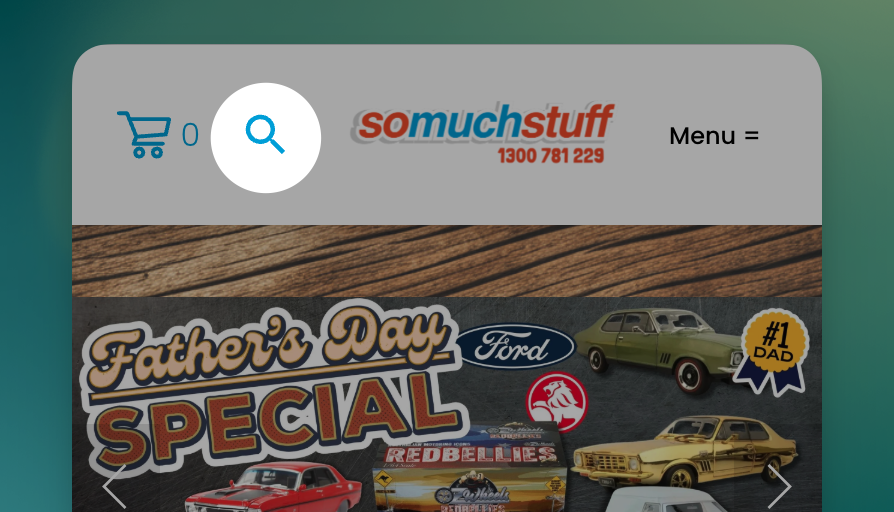
Paste this code into Pages → Custom Code → Code Injection:
(function () {
  function onReady(fn) {
    if (document.readyState !== 'loading') fn();
    else document.addEventListener('DOMContentLoaded', fn);
  }

  onReady(function () {
    var container = document.querySelector('.header-display-mobile .header-actions.header-actions--right .showOnMobile');
    if (!container) return;

    // Make items render horizontally
    if (!container.style.display) container.style.display = 'flex';
    container.style.flexDirection = 'row';
    container.style.alignItems = 'center';
    if (!container.style.gap) container.style.gap = '8px';

    // Avoid duplicate insertion
    if (container.querySelector('.header-actions-action--search')) return;

    // Build the search action
    var wrapper = document.createElement('div');
    wrapper.className = 'header-actions-action header-actions-action--search';

    var link = document.createElement('a');
    link.href = '/search';
    link.setAttribute('aria-label', 'Search');

    link.className = 'header-icon header-icon-border-shape-none header-icon-border-style-solid';
    link.innerHTML =
      '<span class="Search-inner">' +
      '<svg class="icon icon--search" width="20" height="20" viewBox="0 0 24 24" aria-hidden="true" focusable="false">' +
      '<path fill="currentColor" d="M15.5 14h-.79l-.28-.27a6.5 6.5 0 10-.71.71l.27.28v.79l5 5 1.5-1.5-5-5zm-6 0A4.5 4.5 0 1114 9.5 4.5 4.5 0 019.5 14z"/>' +
      '</svg>' +
      '</span>';

    wrapper.appendChild(link);
    container.appendChild(wrapper);
  });
})();
Open the site on a small screen. Confirm that the search icon appears and opens the search page.
Change the search bar placeholder
The default placeholder is Search. You can change it to describe the site or to use another language. This example uses Search my Site:
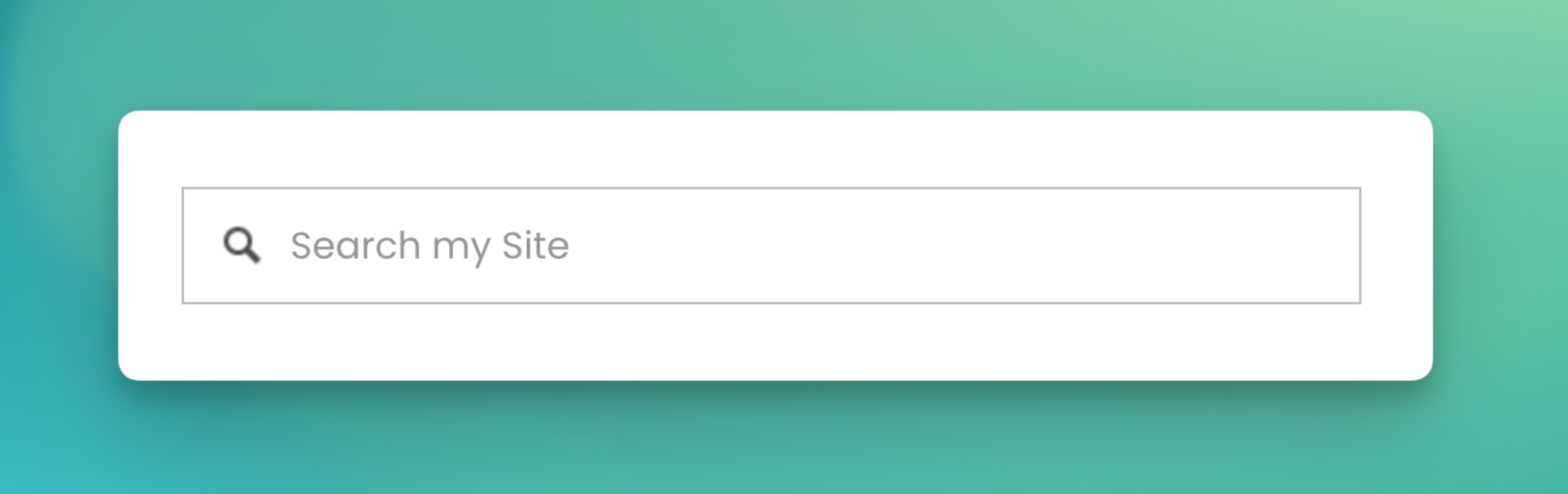
Follow these steps:
- Open Pages → Custom Code → Code Injection. Code Injection must be available on your Squarespace plan.
- Paste the code below into Footer. Replace Search my Site with your text.
- Select Save.
Paste this code:
<script>
  document.addEventListener('DOMContentLoaded', () => {
    const searchFields = document.querySelectorAll('.search-input')
    searchFields.forEach((input) =>
      input.setAttribute('placeholder', 'Search my Site'),
    )
  })
</script>
This code comes from a Squarespace Forum post by Spark Plugin.
This code changes the placeholder in a Squarespace Search Block. It does not change the standalone search page at yourURL.com/search.
Change colours in the search bar
Placeholder text colour
The default grey placeholder can be difficult to read on a dark background:
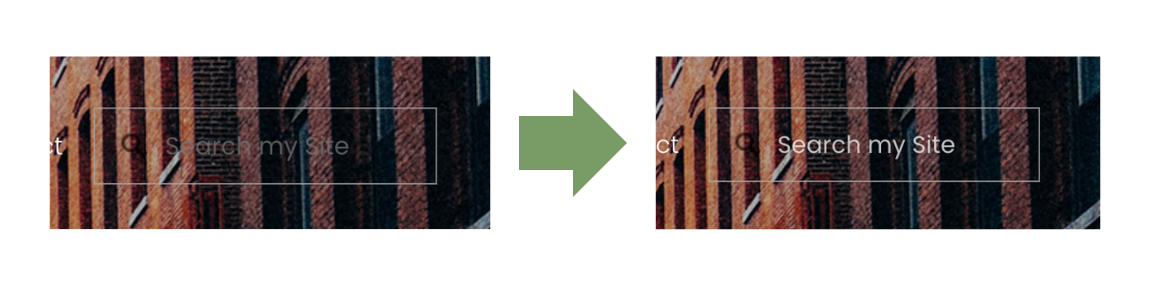
To change the placeholder text colour, add this code under Pages → Custom Code → Custom CSS:
.search-input::placeholder {
  color: white; /* Change this to your desired color */
  opacity: 1;
}
The opacity line is optional. It can improve visibility in some browsers.
Background colour
To change the search bar background colour, paste this code into Custom CSS:
.search-input {
  background-color: lightgray !important; /* Change this to your desired color */
}

You can also use custom CSS to change:
border-radius, which controls how round the bar isborder, which controls the line thickness
Make Member Sites searchable
Squarespace search does not include Member Site content. You can use one of these methods.
Option 1: Use a Squarespace workaround
In a Squarespace Forum post, user csgersbeck suggests this method:
if you keep the monetized blog/course/video collection in your "unlisted" section, or anywhere that's not in a member site that's behind a paywall, and then add a paywall separately to that blog/course/video collection, all of those paywalled videos/blogs/courses will then show up on search engines, safely protected by the paywall.
This method still requires a third-party search engine. Squarespace search does not find the content. The pages also remain public, although you can put the videos behind the paywall.
Option 2: Use Monocle Search
Monocle Search supports Squarespace Member Site content. Follow the Member Site search guide to set it up.