Customise Monocle Search
Activate product search
Requires a Monocle Search Professional subscription.
If you connected the site through Squarespace OAuth, Monocle activates Product Search automatically when your plan supports it.
What product search adds
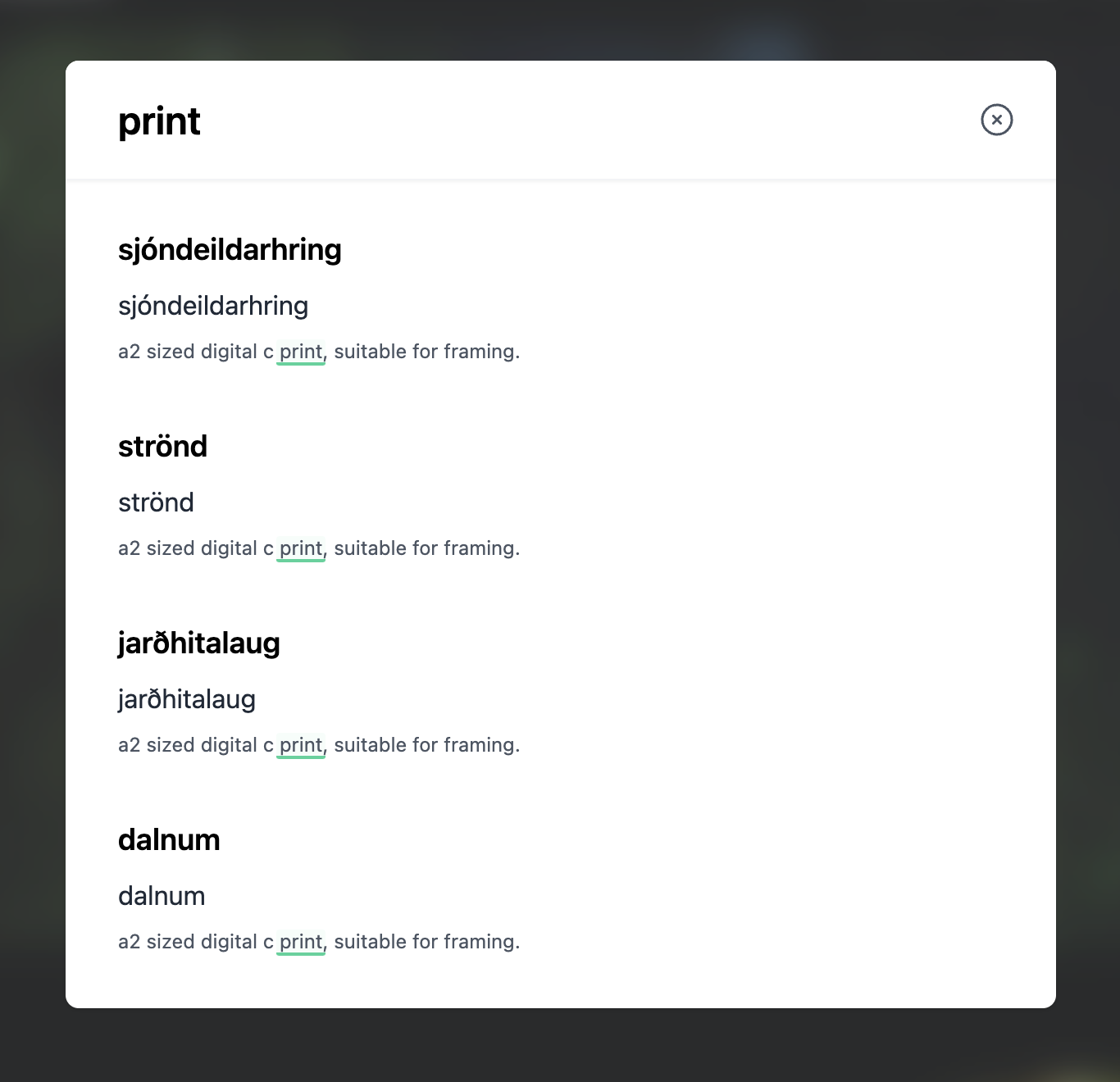
Without Product Search, Monocle indexes products as normal pages:
With Product Search, results can include product details:
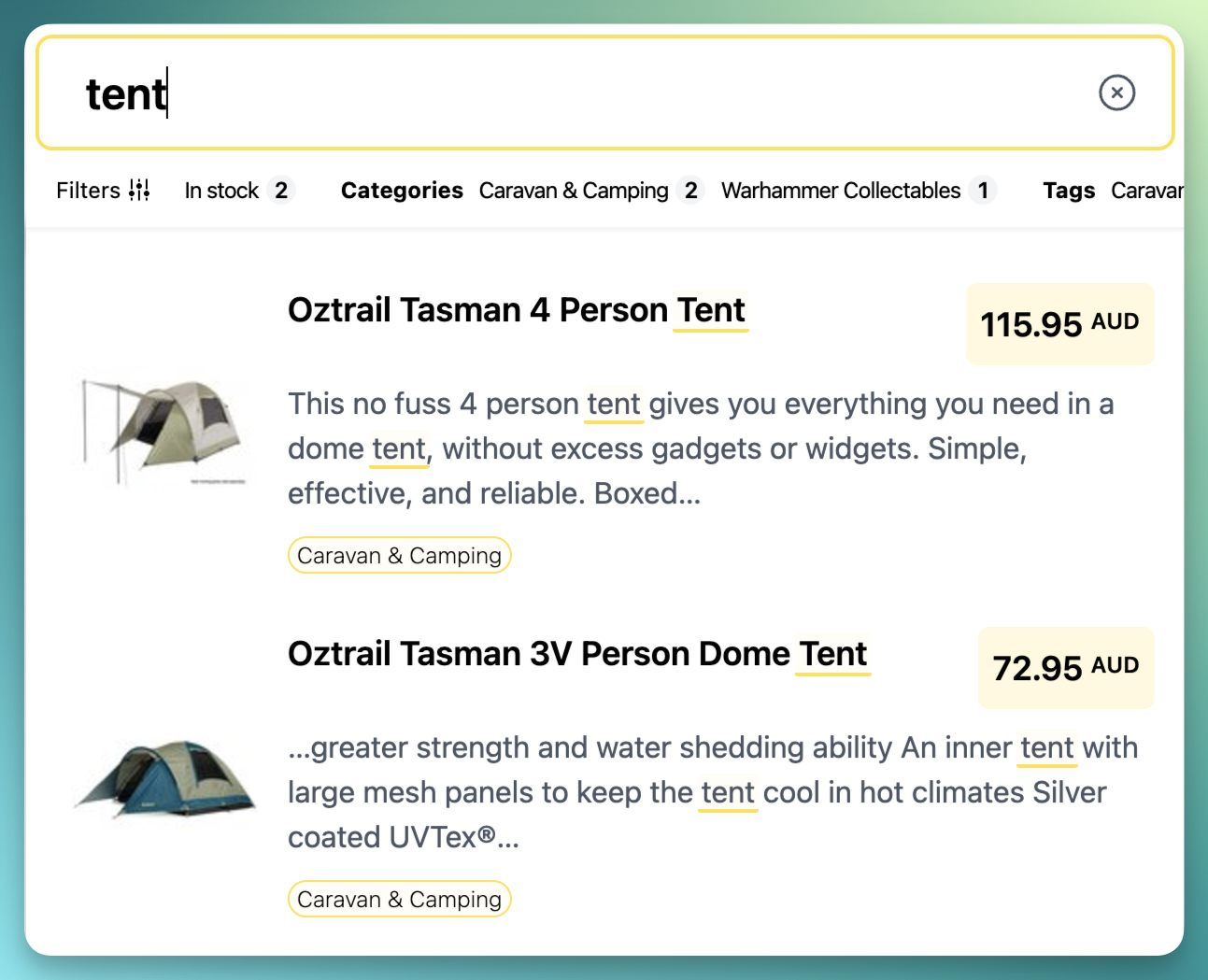
Product Search adds:
- product images
- current prices
- product tags
It does not remove non-product results.
Add products to Monocle Search
If you created the Monocle account with an email address instead of Squarespace OAuth, connect a Squarespace API key:
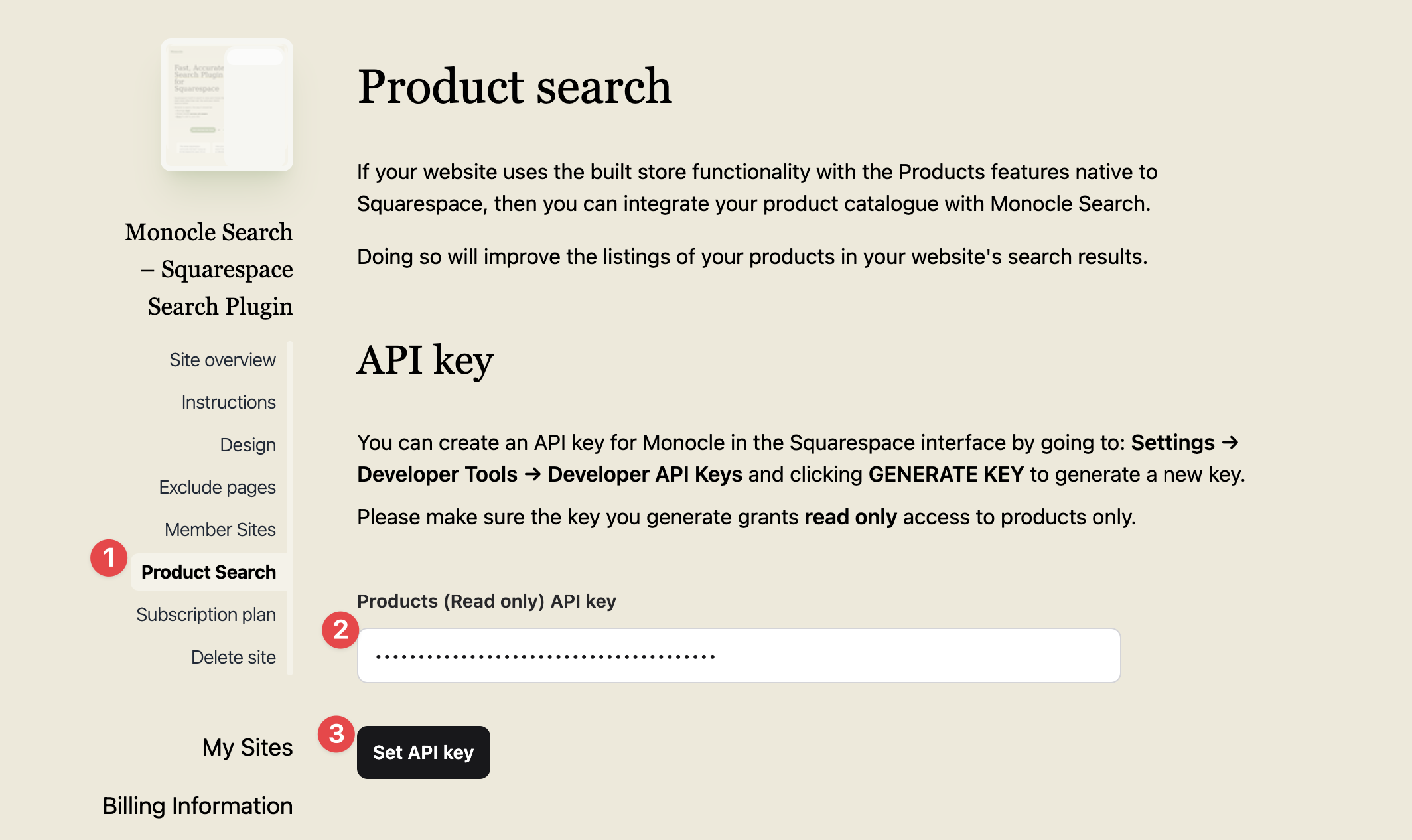
- Open Product Search in the Monocle interface.
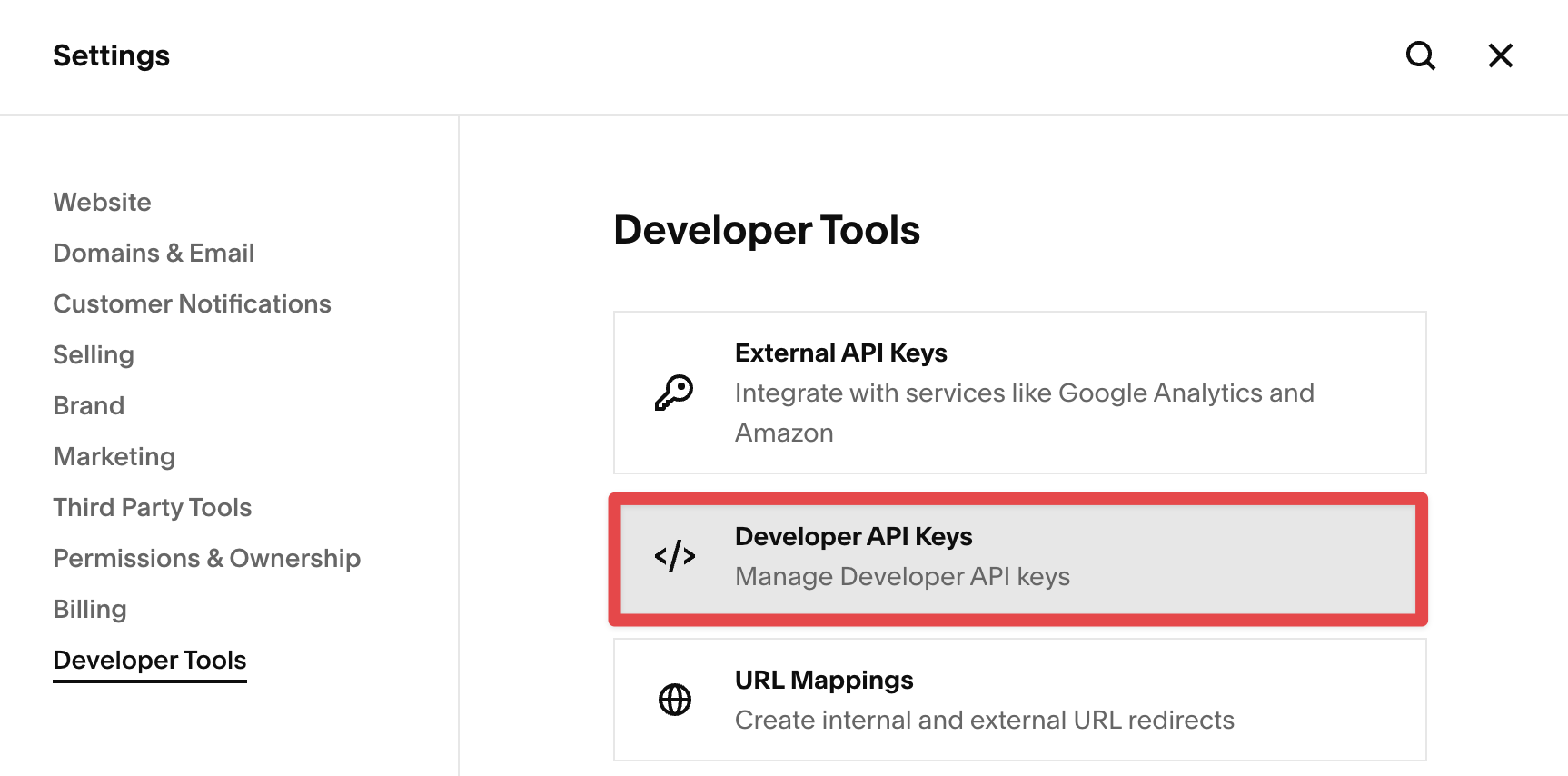
- In Squarespace, open Developer Tools → Developer API Keys. Select Generate Key, then create a read-only key for products.
- Return to Monocle. Enter the key, then select Set API key.
Monocle can now show product details in search results.
Filter products by category
Monocle uses product tags, assigned product categories, and store page names as source values for Collection filters. Squarespace's Commerce API does not include product categories. Monocle reads assigned categories from each public Squarespace store page. If a store page is unavailable, Monocle still imports its products and tags. Some products can then have no category data.
AI suggestions organise existing values into filters and options. They need at least two distinct tags or categories. A single store name shared by every product is not enough. You can create filters manually when suggestions are unavailable.
Select Suggest filters below the existing filter list. AI considers your existing filters, including disabled filters, to avoid duplicate groupings. Automatic prefix filters are already available and are excluded from suggestions. The loading card becomes a review in the same place. Review the filter names, option labels, and matching values before selecting Apply suggestions. Cancel closes the card and restores Suggest filters.
After adding or changing tags or categories in Squarespace, crawl the site again before generating suggestions. Reindexing an older crawl does not collect missing categories.
When a product update fails
If the product connection fails or the final wait for products times out, Monocle stops the crawl. The search index does not change. A site with no search index remains without one.
- Check the product connection.
- Start another crawl.
Give visitors filter choices
Regular search has no visitor filter controls. Product tags remain visible as text.
- Open Collections in the site menu.
- Open a Collection, or select Create a Collection to create one.
- Select Products under Content.
- Open Filters.
- Select Create new filter, or turn on a saved filter's switch.
- Select Edit to change an existing filter.
- In the filter window, give each option a name and matching tags or values. The last column shows how many items match.
- Select Create or Save when ready.
Collection settings save automatically. Changes inside the filter window are not saved until you select Create or Save.
Product specific filters includes Price range, In stock, and On sale. This section is disabled when Products is switched off under Content, or product search is unavailable on your plan. Your product filter settings are kept and become available again when access is restored.
Drag the dot handle to reorder filters, or focus the handle and press Arrow Up or Arrow Down. Turning off a filter hides it from visitors without deleting its shared definition or changing its position in this list. You can reorder filters while they are switched off. Each Collection keeps its own order.
The Filter name appears above the options on your website. Use Internal name to keep variants of the same filter apart. For example, two filters can show Categories to visitors. Use Blog categories and Shop categories as their internal names. Select the appropriate filter for each Collection.
Without an internal name, the editor uses the visitor name. Each saved filter must have a different name in the editor. Internal names are not shown to visitors or used by AI answers.
Values such as Medium: Ink and Medium: Pencil create an automatic Medium filter. A prefix must have at least two different options. Automatic options stay in sync with indexed content. These filters do not change a Collection until you add them to it.
Each table row pairs an option name with one or more matching values. Choose a suggestion or press Enter to add a value. Type Medium:* to match values beginning with Medium:, or *Ink* to match values containing Ink. Wildcard values have a subtly different pill.
Suggestions hide exact values already added to the current option. Remove a value to make it available again. You can still use the same value in another option.
Drag a row handle to reorder options, or use Move up and Move down in its menu. Empty rows have no row controls and are ignored when saving. Tab moves across inputs. Up at the start of an input and Down at the end move between rows, including the filter name above the first row.
The filter window shows match counts instead of a separate preview. Cancel, Escape, or clicking outside closes it; if you have unsaved changes, you are asked before they are discarded. Missing or invalid entries are only flagged when you try to save.
The links under Also used in Collections open each Collection's Filters section in a new tab. Select Delete filter below the list to remove a custom filter from every Collection. Check the affected Collections in the confirmation dialogue, then select Delete filter everywhere. Other filter definitions are not changed.
Choose Top for dropdowns, or Left or Right for collapsible filter lists. Options with available source values elsewhere on the site remain visible even if they have no matches in this Collection. Options with no available source values are hidden without deleting their saved definitions. Selected available options remain removable.
Saved filter definitions also help AI answers interpret indexed values. They do not automatically apply restrictions to answers.